
 CRE Agents
Connect CRE Agents to Codex
Connect CRE Agents to OpenAI Codex: add an MCP server in Codex settings, choose Streamable HTTP, paste the address, and authenticate.
You need: Codex and your CRE Agents email.
Step by step
Section titled “Step by step”-
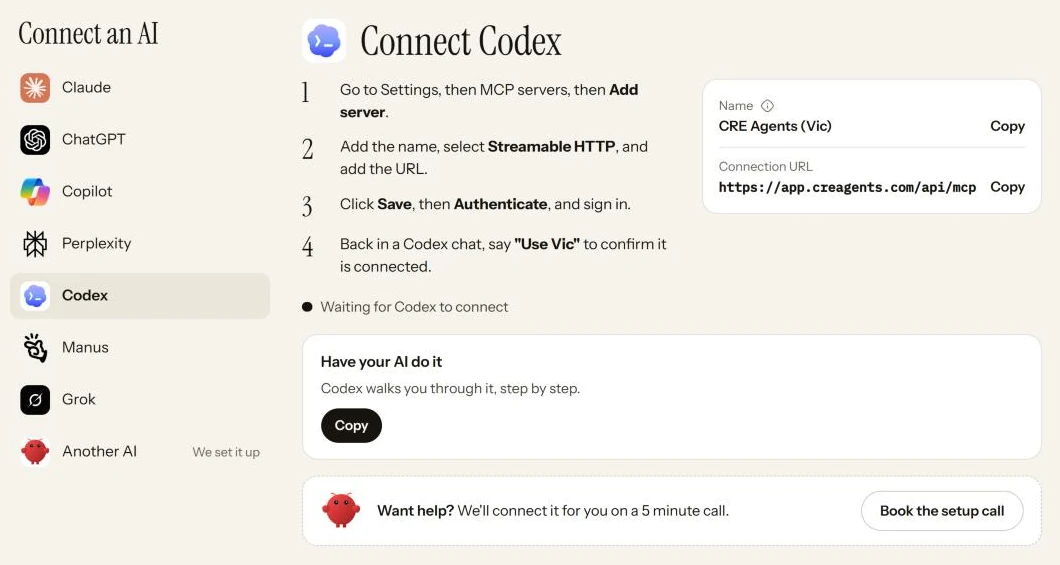
Go to Settings, then MCP servers, then Add server.
-
Paste the name, select Streamable HTTP, and paste the URL below. Make no other changes.
-
Click Save, then click the Authenticate button that appears and sign in to CRE Agents.
-
Test it. Back in a Codex chat, say “Use Vic” to confirm it’s connected.
CRE Agents (Vic)https://app.creagents.com/api/mcpCopy the name exactly. The "(Vic)" is what lets you call on it later with "Use Vic".
Have your AI do it
Section titled “Have your AI do it”On the portal’s Connect page, the Have your AI do it box has a ready-made prompt. Copy it and paste it into Codex, and it walks you through one step at a time.
Check that it worked
Section titled “Check that it worked”In a Codex chat, say “Use Vic”.
In the portal, Codex now shows up on Connected AIs in the left menu.
Next steps
Section titled “Next steps”© 2026 CRE Agents. All rights reserved.
AI can make mistakes. Please double-check responses. Not tax, legal, or investment advice.