
 CRE Agents
Find your way around
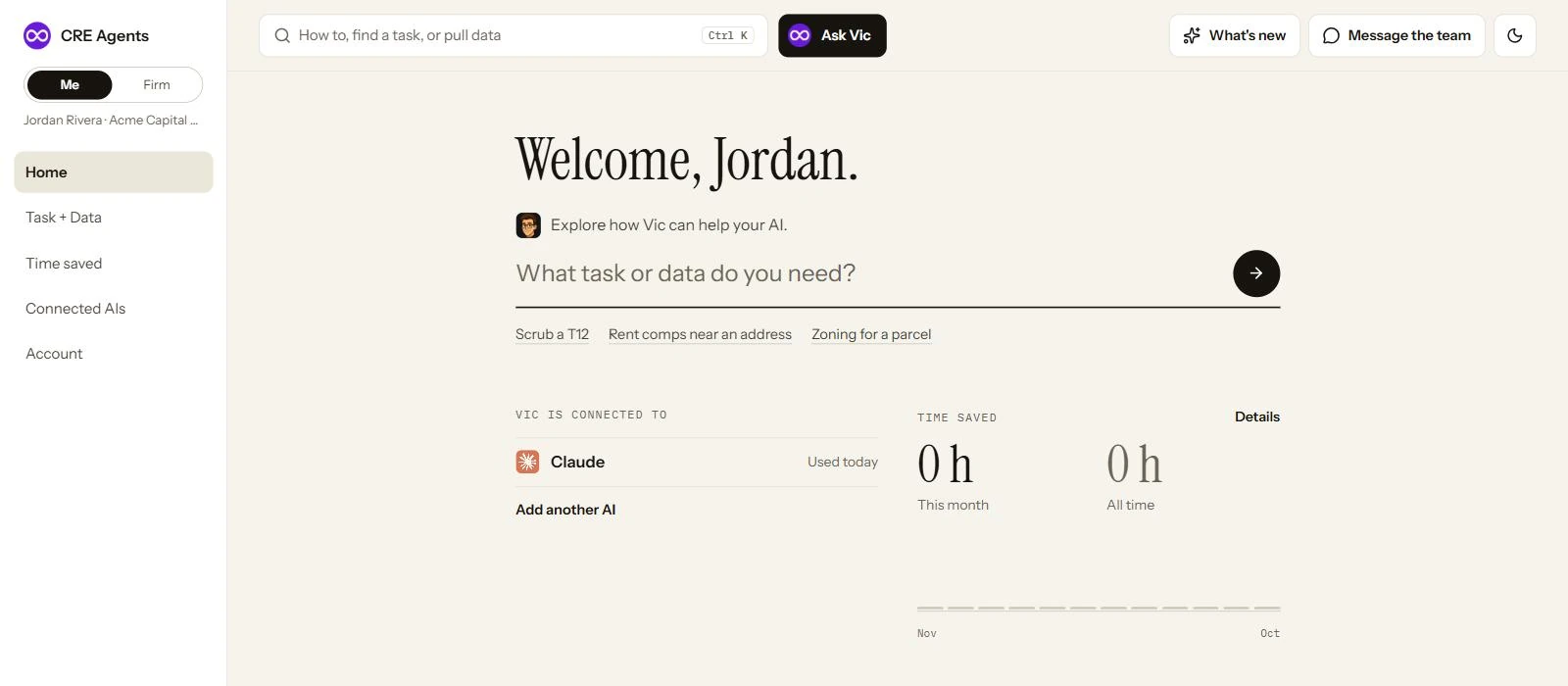
The portal in one picture. Pages on the left, quick actions across the top.
The portal lives at app.creagents.com. Your work happens in your AI. The portal is where you set things up, find tasks and data, and see the time you got back.
The left menu
Section titled “The left menu”| Page | What it’s for |
|---|---|
| Home | Ask Vic for a task or data, see which AIs Vic is connected to, and your time saved. |
| Task + Data | Your catalogs and every task in them, plus the data sources Vic can pull. See Catalogs and Data. |
| Time saved | The hours your tasks gave back, every run, and an activity log. |
| Connected AIs | The AIs you’ve connected, and the steps to add another. |
| Account | Your profile and your seat. |
Admins also see a Me / Firm switch at the top of the menu. Firm opens the pages for running your firm. See Firm admin.
The top bar
Section titled “The top bar”| Button | What it does |
|---|---|
| Finish setup | Shows until setup is done, with how many steps are left. Click it to pick up where you left off. |
| How to, find a task, or pull data | Opens Ask Vic. So does Ask Vic, or Ctrl K (⌘K on a Mac). |
| What’s new | New tasks, data and features. A dot means something you haven’t seen. |
| Message the team | Write to a person at CRE Agents. A bug, an idea or a question. |
| Moon or sun | Dark mode or light mode. |
On a phone, the same buttons sit beside the logo, and Ask Vic gets its own row.
Next steps
Section titled “Next steps”© 2026 CRE Agents. All rights reserved.
AI can make mistakes. Please double-check responses. Not tax, legal, or investment advice.