
 CRE Agents
Finish setup
A few minutes the first time you sign in. Tell Vic about your work, or use the checklist.
The first time you sign in, the portal walks you through setup. You can do it two ways.
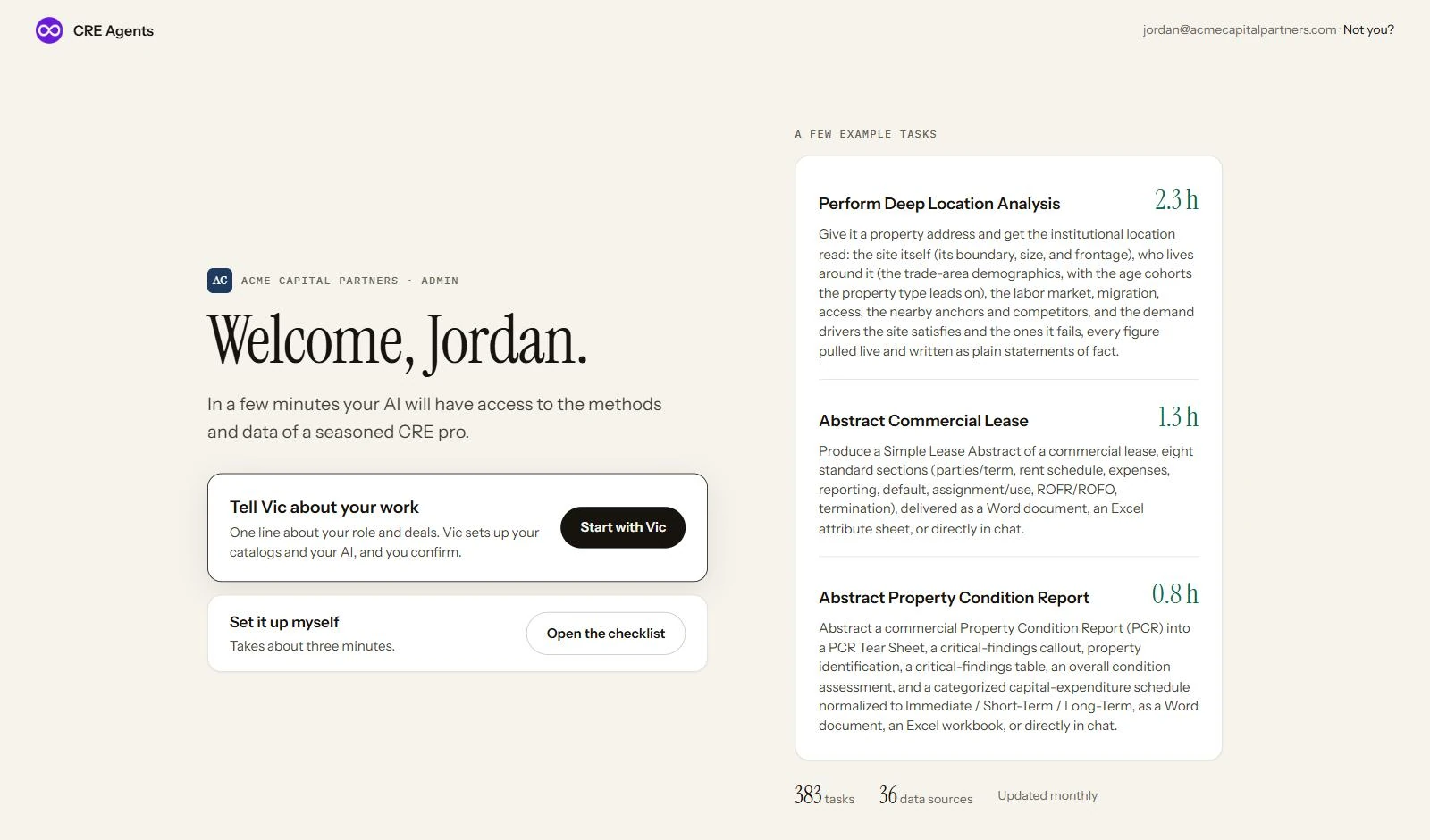
| Setup with Vic | Setup Manually | |
|---|---|---|
| You do | Write one line about your role and your deals. | Fill in a short checklist. |
| Vic does | Proposes your catalogs and connects your AI. You confirm. | Nothing. You pick everything. |
| Takes | About a minute. | About three minutes. |
Setup with Vic
Section titled “Setup with Vic”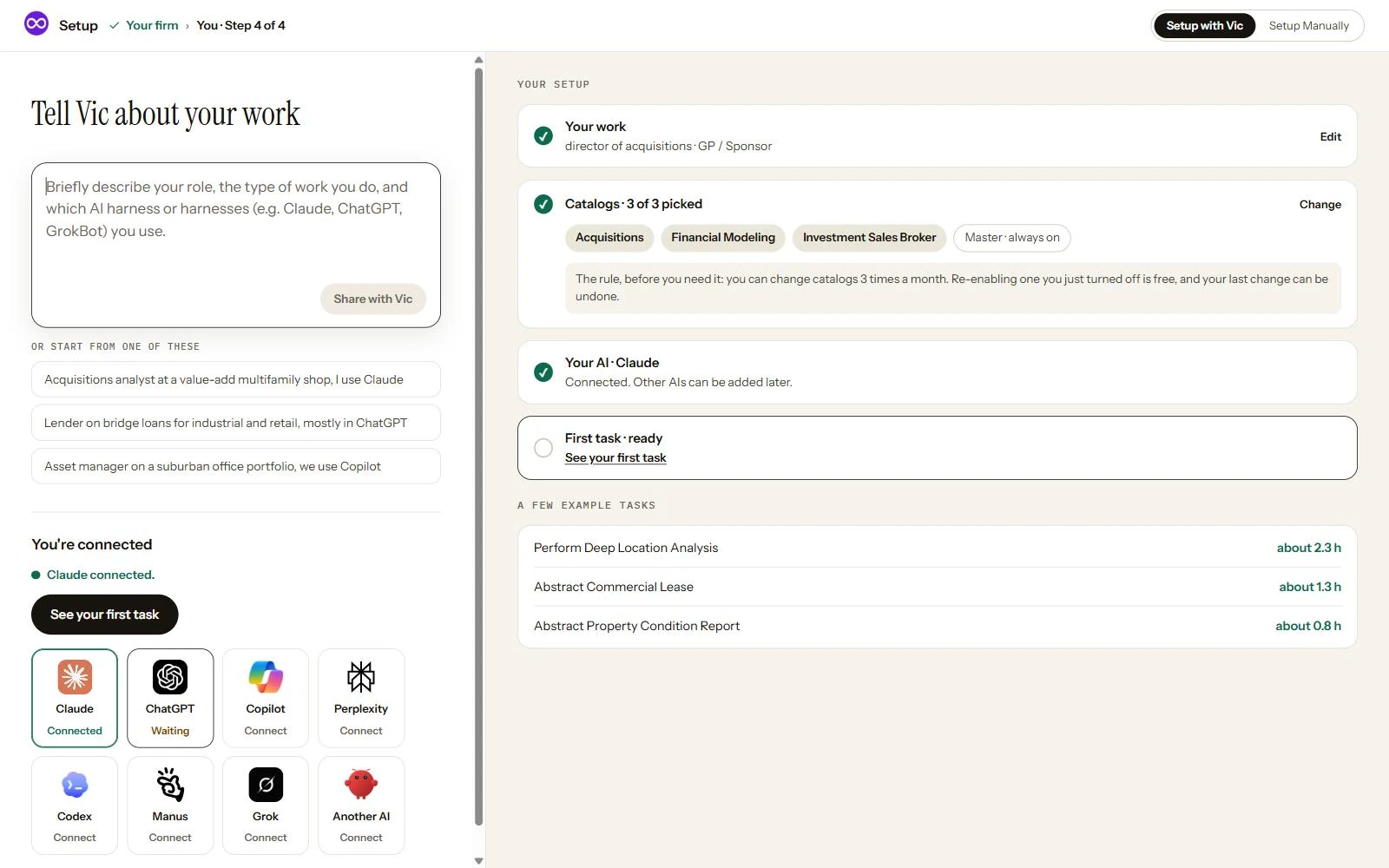
Setup Manually
Section titled “Setup Manually”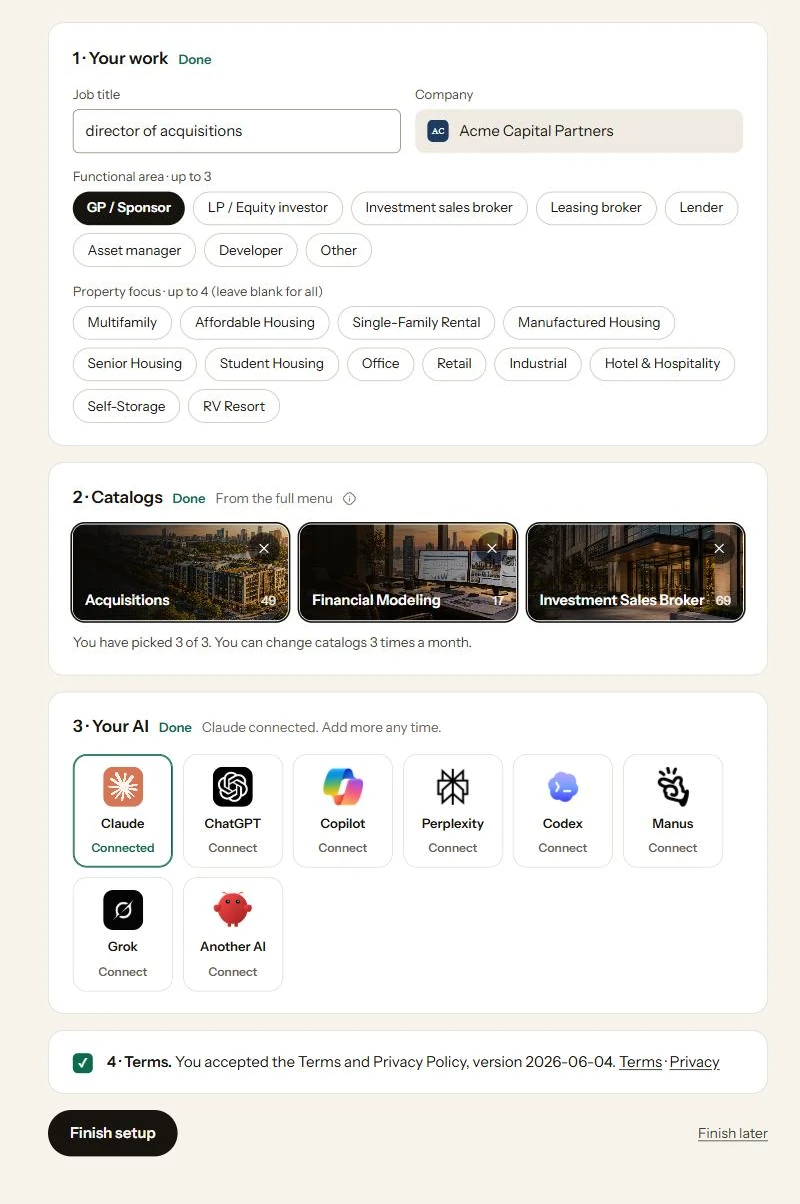
1. Your work
Section titled “1. Your work”Your job title and company, the kind of work you do (up to three areas), and up to four property types you focus on. Vic uses it to recommend catalogs.
2. Catalogs
Section titled “2. Catalogs”A catalog is a set of tasks for one line of work, like Acquisitions or Asset Management. Pick at least one. The step shows how many your seat can hold. See Catalogs.
3. Your AI
Section titled “3. Your AI”Click the AI you use: Claude, ChatGPT, Copilot, Perplexity, Codex, Manus, Grok, or another AI. Its steps open right there, and the step ticks itself once your AI connects. See Connect your AI.
4. Terms
Section titled “4. Terms”You accept the Terms and Privacy Policy on the sign-in screen when your AI connects. The box ticks itself once you have.
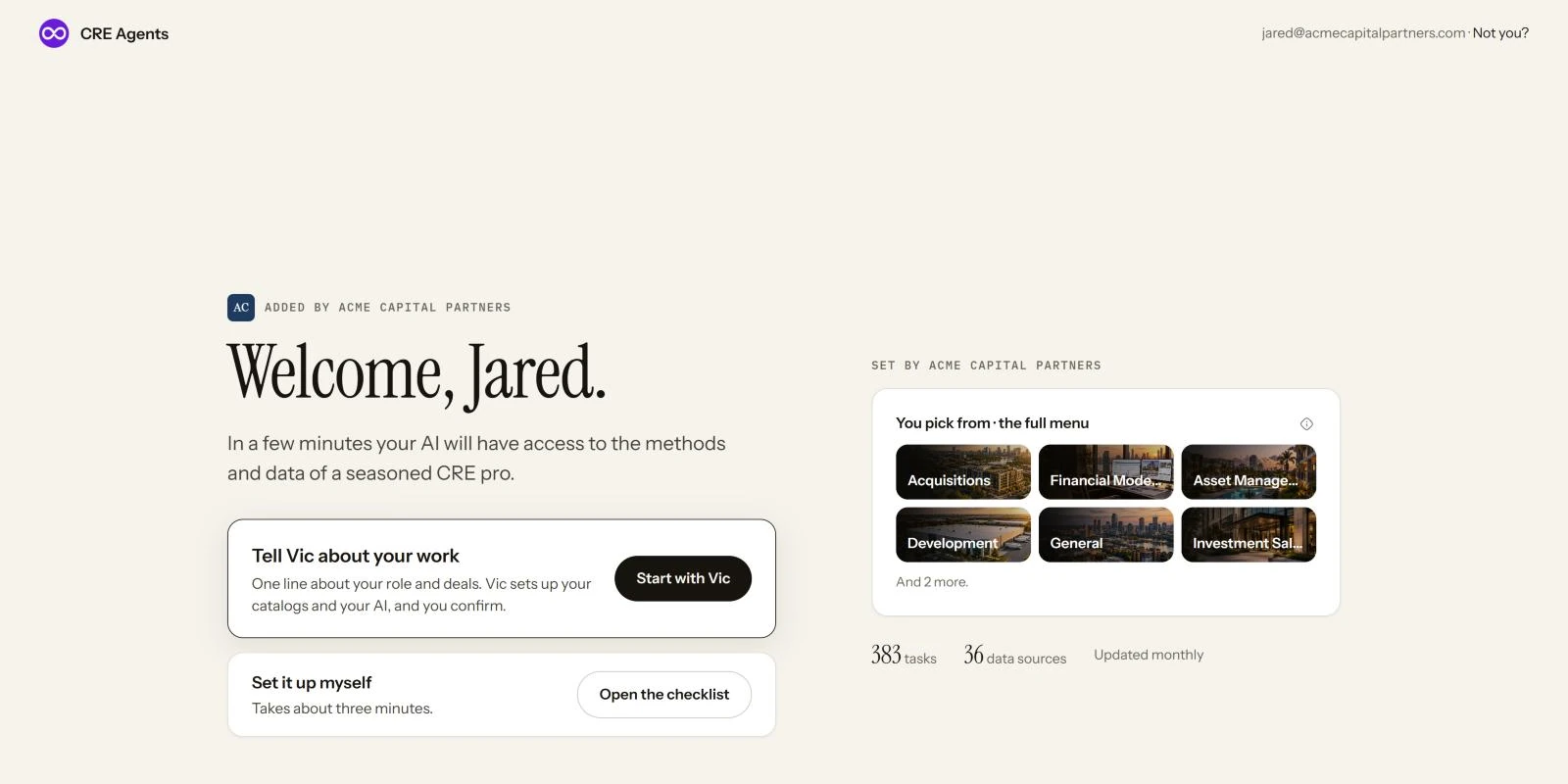
If your firm added you
Section titled “If your firm added you”Your welcome says who added you, and shows what your firm already set: the catalogs you have, your department’s menu and your firm’s document style. Your company comes from your firm, and your catalog choices come from your department’s menu. Want one that isn’t there? Click Ask (your admin) for another, and they see the request.
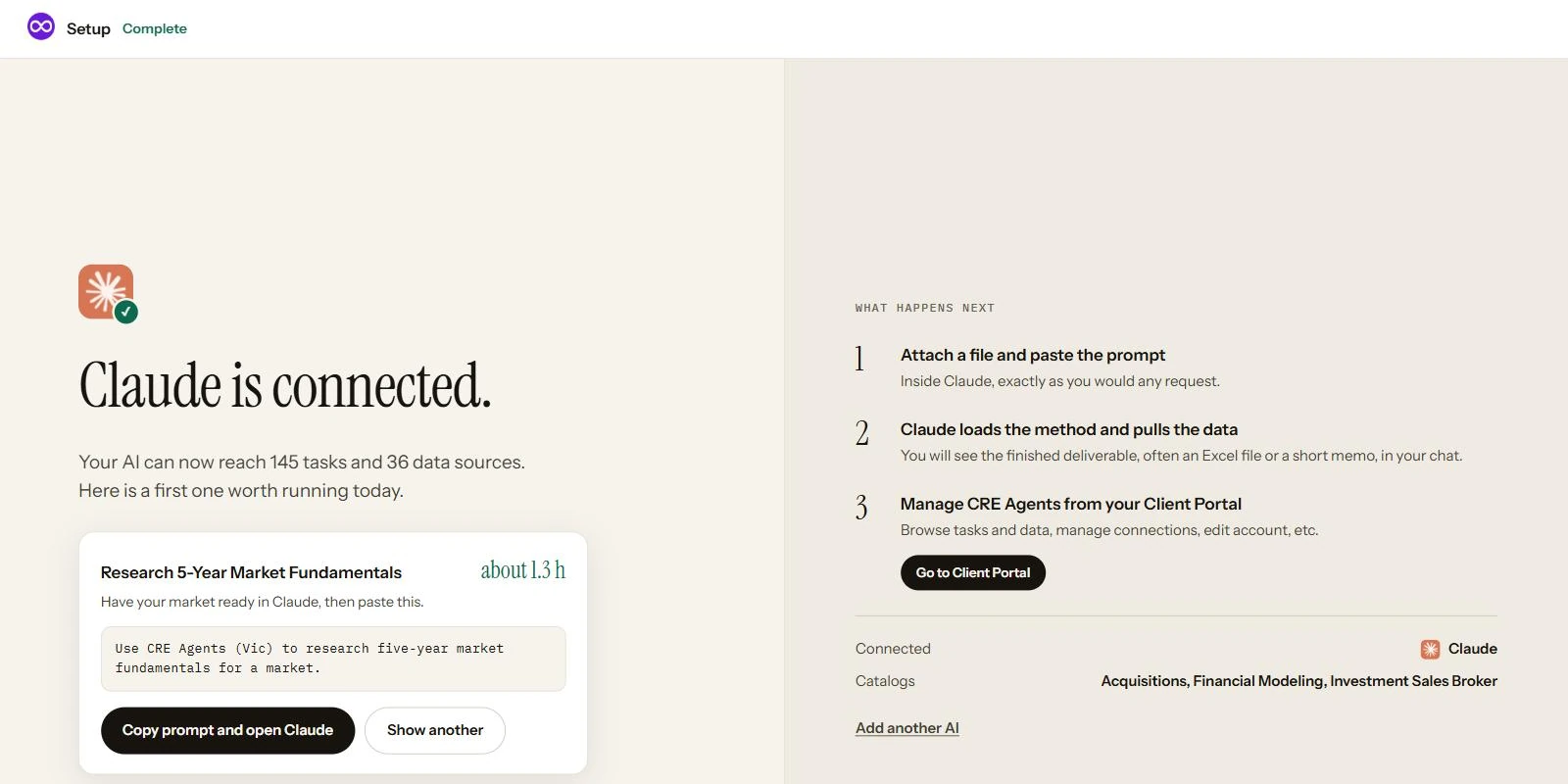
Finish
Section titled “Finish”Finish setup unlocks once you’ve picked a catalog and your AI is connected. Not ready? Click Finish later. The Finish setup button in the portal’s top bar shows how far you got, and takes you back.
Next steps
Section titled “Next steps”© 2026 CRE Agents. All rights reserved.
AI can make mistakes. Please double-check responses. Not tax, legal, or investment advice.