
 CRE Agents
Connect CRE Agents to Microsoft Copilot
Add CRE Agents to an agent in Copilot Studio as an MCP tool, then share it with your firm in Teams and Microsoft 365 Copilot.
You need: a Copilot Studio environment where you can create connectors (a maker or admin role), and your CRE Agents email.
Step by step
Section titled “Step by step”-
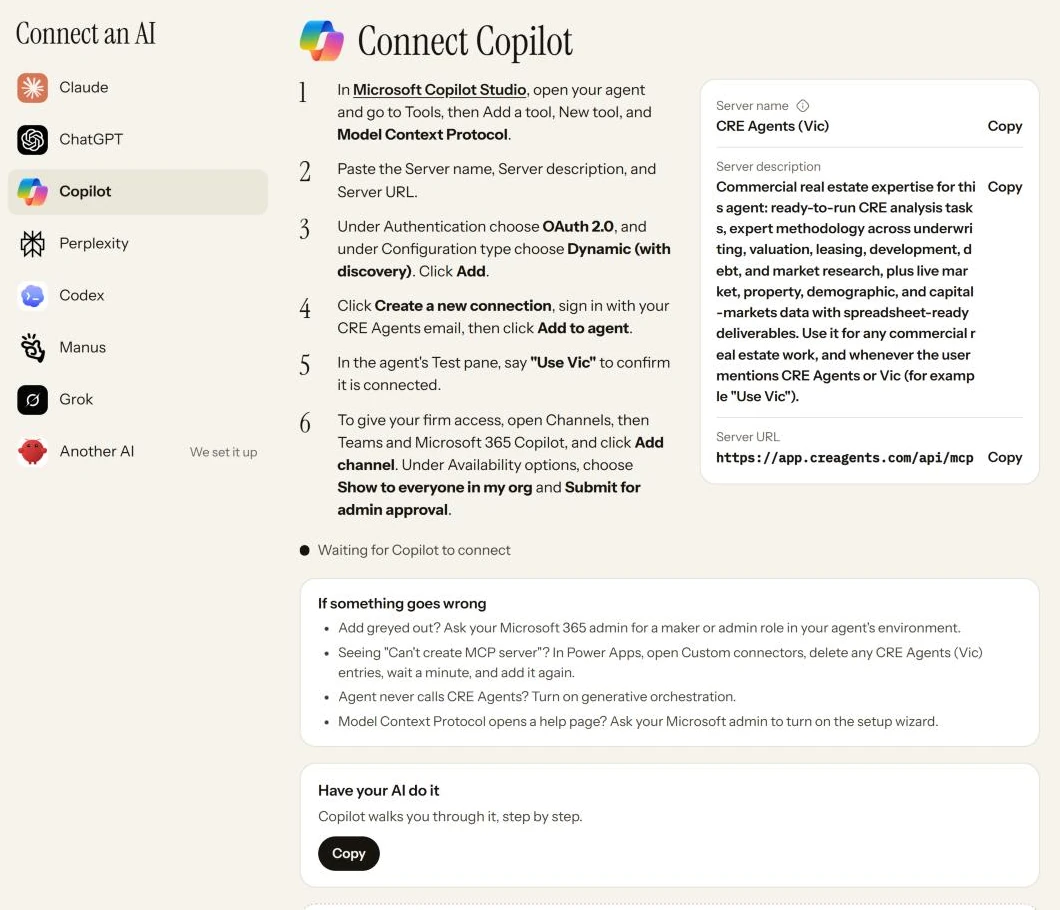
Open your agent. In Microsoft Copilot Studio, open your agent and go to Tools, then Add a tool, New tool, and Model Context Protocol.
-
Enter the details. Paste the Server name, Server description and Server URL below. Copy each one exactly.
-
Set sign-in. Under Authentication choose OAuth 2.0, and under Configuration type choose Dynamic (with discovery). Click Add.
-
Connect. On the Add tool screen, click Create a new connection and sign in with your CRE Agents email (a six digit code arrives by email). Then click Add to agent.
-
Test it. In the agent’s Test pane, say “Use Vic” to confirm it’s connected.
-
Share it with your firm. Open Channels, then Teams and Microsoft 365 Copilot, and click Add channel. Under Availability options, choose Show to everyone in my org and Submit for admin approval.
CRE Agents (Vic)Commercial real estate expertise for this agent: ready-to-run CRE analysis tasks, expert methodology across underwriting, valuation, leasing, development, debt, and market research, plus live market, property, demographic, and capital-markets data with spreadsheet-ready deliverables. Use it for any commercial real estate work, and whenever the user mentions CRE Agents or Vic (for example "Use Vic").https://app.creagents.com/api/mcpCopy the name exactly. The "(Vic)" is what lets you call on it later with "Use Vic".
Have your AI do it
Section titled “Have your AI do it”On the portal’s Connect page, the Have your AI do it box has a ready-made prompt. Copy it and paste it into Microsoft Copilot, and it walks you through one step at a time.
Check that it worked
Section titled “Check that it worked”In the agent’s Test pane, say “Use Vic”.
In the portal, Microsoft Copilot now shows up on Connected AIs in the left menu.
Next steps
Section titled “Next steps”© 2026 CRE Agents. All rights reserved.
AI can make mistakes. Please double-check responses. Not tax, legal, or investment advice.